Importing Armies
Typing a force in by hand is the slowest way to start a campaign. If you already build lists in NewRecruit, BattleScribe or anything else that exports a roster file, Echelon will turn it into a full Order of Battle, Crusade Cards included, in seconds.
You will need the exported file to hand: .json, .ros or .rosz.
Import Workflow
Which exports are supported
Echelon reads 10th and 11th Edition exports in two file formats:
| File | What it is |
|---|---|
.json | NewRecruit's own export |
.ros, .rosz | The BattleScribe roster format |
.ros and .rosz are an interchange format rather than one app's file. BattleScribe writes them, NewRecruit writes them, and so do several other list builders, so any builder that offers .ros or .rosz will import here. Both formats carry the same underlying roster data, so a list imports the same either way.
Both list shapes are read too:
| Format | What it contains | Imports as |
|---|---|---|
| Roster / army list | One army, its detachments and its battle size | Your Order of Battle |
| Crusade list | Your Order of Battle plus the army you mustered from it | Your Order of Battle |
From an 11th Edition list Echelon also reads each detachment the army combines, the Detachment Points each costs, and the Force Disposition the list was built with.
The edition has to match
A list's edition must match the campaign you are importing into. An 11th Edition list can combine detachments that 10th Edition does not allow, so importing one into a 10th Edition campaign would build an illegal force, so Echelon refuses it and tells you instead. Ask your Host to check the campaign's edition if you see this.
Step-by-Step Instructions
Step 1: Export your list
From NewRecruit:
- Log into your account on NewRecruit.eu.
- Open the army list you wish to import.
- Click the Export / Share button in the upper-right menu.
- Select JSON Export. NewRecruit can also export
.rosand.rosz, and either of those imports too. - Save the file to your computer or mobile device.
From BattleScribe:
- Open the roster you wish to import.
- Choose Share or Export.
- Select the
.roszor.rosformat. - Save the file to your computer or mobile device.
From any other builder: export the list as .ros or .rosz and upload that.
Use Official Game Data
Ensure your list is built using up-to-date Warhammer 40K game data so unit points, keywords, and enhancements match standard rules. Both builders read the same community catalogues, so a stale catalogue in either shows up the same way.
Step 2: Import into Echelon
- Log into Echelon and navigate to Order of Battle.
- Select an existing Order of Battle or click + Create Order of Battle.
- Click Import Roster in the top action bar.
- Drag and drop your exported file into the upload zone, or click Browse Files to select it.
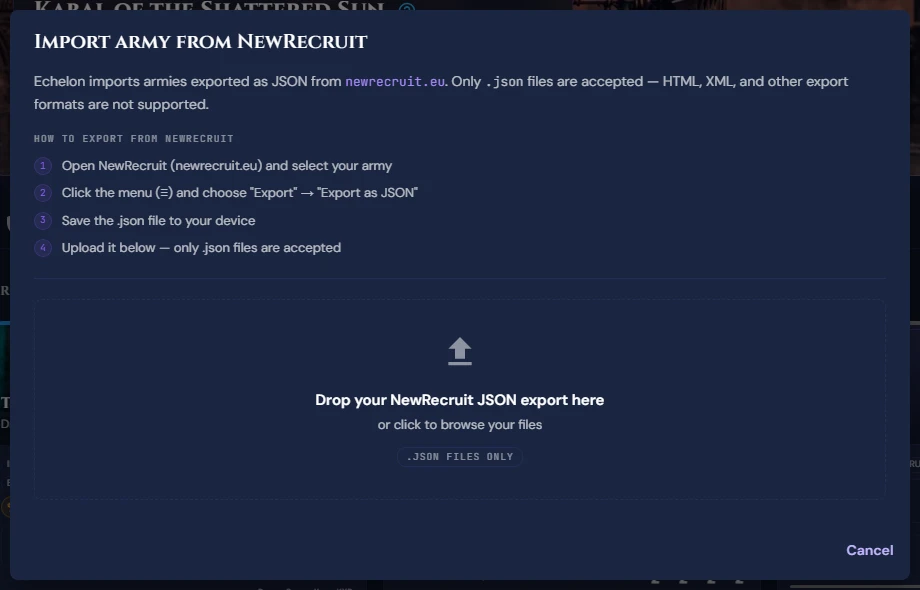
- Echelon will parse the file and display a Roster Preview Modal:
- Units Identified: Displays unit names, squad sizes, and point costs.
- Detachment & Faction: Displays parsed faction metadata. An 11th Edition list shows every detachment it combines with its Detachment Points cost, plus the Force Disposition it was built with.
- Click Confirm Import.
Step 3: Verify Crusade Cards
Once imported, Echelon automatically generates a Crusade Card for every unit in the file:
- Check that unit point totals match your expected Supply Limit.
- Select your Warlord Character unit and toggle Warlord.
- Verify initial weapon equipment and options.
Edge Cases & Troubleshooting
Unit Point Discrepancies
If point values differ between your army builder and Echelon:
- Open the specific unit's Crusade Card in Echelon.
- Click Edit Card Details.
- Adjust the Starting Point Cost manually and click Save.
Detachment Not Recognised
Echelon matches each detachment in the file against its built-in catalogue. Anything it cannot place is kept under its original name as a custom entry, so nothing is lost. That covers homebrew detachments, and any added to the game since the catalogue was last refreshed. A custom detachment has no Detachment Points cost, so it counts as zero towards an 11th Edition budget; check the total yourself if you rely on one.
Duplicate Units
If you re-import an updated list into an existing Order of Battle, Echelon will ask whether to:
- Append New Units: Add new units while preserving existing Crusade Cards and XP history.
- Overwrite Roster: Replace all Crusade Cards with the new file.
Data Loss Warning
Selecting Overwrite Roster will permanently delete existing battle tallies, XP history, and earned Battle Honours for that roster. Use Append New Units or edit cards individually to maintain unit history.