Order of Battle & Crusade Cards
Your Order of Battle is the master list of everything in your Crusade force: every unit, character, vehicle and squad you can field. Each entry carries its own Crusade Card, and the whole thing has to fit inside your Supply Limit.
Key Concepts
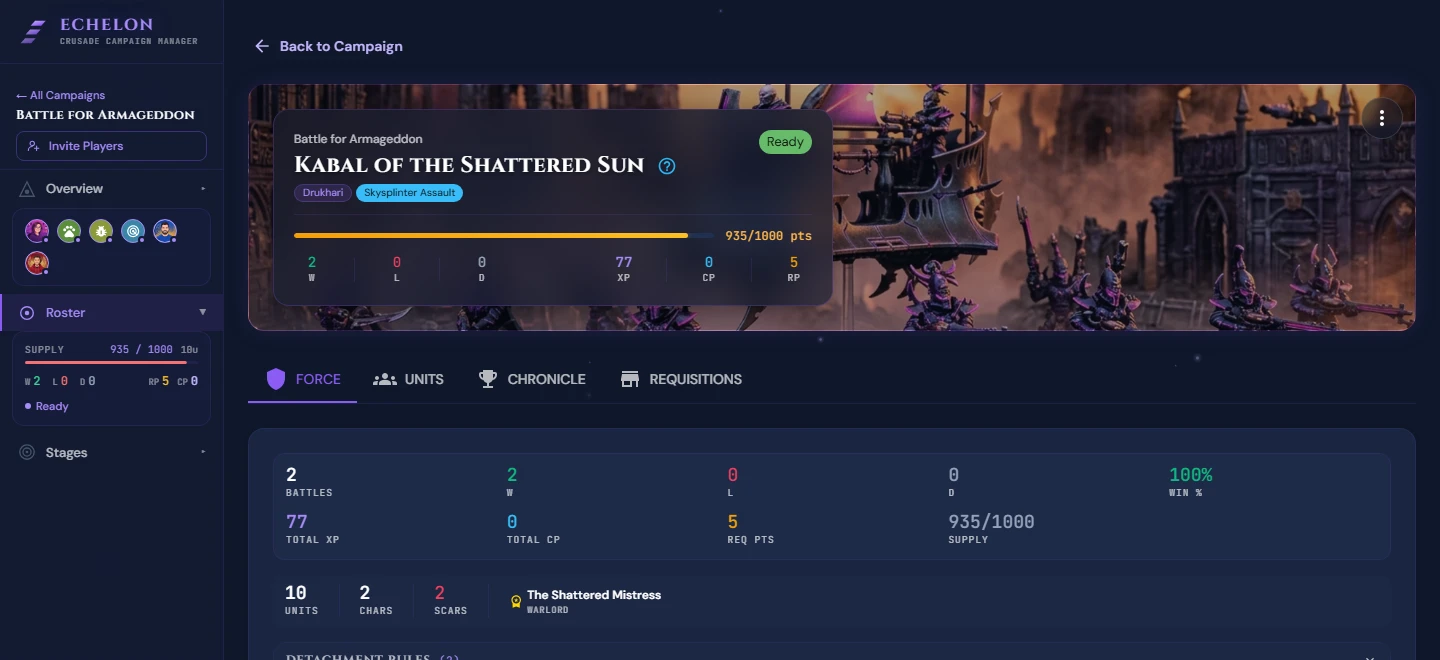
- Supply Limit: The maximum total point value of all units registered on your Order of Battle.
- Supply Used: The combined point cost of your current Crusade Cards.
- Crusade Card: A digital record for a specific unit tracking its history, battles played, kills, XP, rank, honours, and scars.
- Requisition Points (RP): Currency used to upgrade your force, increase supply, or heal units.
Creating an Order of Battle
There is nothing to create. Joining a campaign gives you a force sheet, and it appears the first time you open Roster, already carrying the campaign's starting Supply Limit and Requisition Points.
What you fill in is on the Force tab, from Edit Force Details in the ⋯ menu on your force banner:
- Force Name: e.g. Strike Force Ironclad.
- Faction: your primary faction (e.g. Space Marines, Necrons, Tyranids). Set this first, because the detachment list is filtered by it.
- Detachment: your starting Detachment (e.g. Gladius Task Force). In an 11th Edition campaign you can combine up to three within a Detachment Points budget. See Detachment Rules.
Your supply limit starts at whatever the host set for the campaign, 1,000 points unless they changed it, and grows by spending Requisition Points on Increase Supply Limit.
How the List Is Arranged
Your units are grouped by role, in the order they would appear on a battlefield roster: Epic Heroes, Characters, Battleline, Infantry, Mounted, Vehicles, Monsters, Aircraft, Fortifications, then Other. Echelon works the group out from a unit's keywords, so an imported roster sorts itself.
Each group header carries its own colour, an icon, the number of units in it and their points. The points exclude destroyed units, so the groups add up to your Supply Used; the counts include them, because a destroyed unit is still on your Order of Battle. Click a header to collapse the group.
The Army shape card on the Force tab is the same breakdown drawn as a bar: one segment per role, sized by points, with your Warlord named underneath.
Managing Crusade Cards
Adding Units
You can populate your Order of Battle in two ways:
Option A: Import a list you have already built (Recommended)
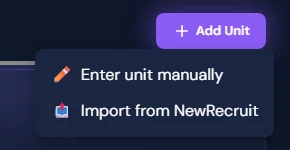
Export your army as JSON from NewRecruit, or as a .ros or .rosz file from BattleScribe or any other builder that writes that format, and upload it via Import Roster. Crusade Cards are created for every unit, with point costs, upgrades and weapon profiles.
See the complete Importing Armies Guide for a detailed walkthrough.
Option B: Manual Unit Creation
- Click + Add Unit in the roster toolbar.
- Select the unit type (Character, Battleline, Vehicle, Monster, Other).
- Enter the Unit Name (e.g., Captain Aethelgard).
- Input the Starting Point Cost (e.g.,
95 pts). - Add initial equipment or upgrades in the notes section.
- Click Add Crusade Card.
Appointing a Warlord
Every Crusade force requires one Character unit designated as its Warlord.
- Open your Order of Battle.
- Click on the target Character unit's Crusade Card.
- Click Set as Warlord. A crown icon will appear on the unit's card.
Unit Ranks & Experience (XP)
As units survive battles and achieve Agendas, they gain Experience Points (XP) and advance through 5 Crusade Ranks:
| Rank | Required XP | Honours Allowed |
|---|---|---|
| Battle-ready | 0 – 5 XP | 0 |
| Tested | 6 – 15 XP | 1 |
| Battle-hardened | 16 – 30 XP | 2 |
| Heroic | 31 – 50 XP | 3 |
| Legendary | 51+ XP | 4 |
When a unit gains enough XP to rank up, a Rank Up Available banner appears on its card. Click the banner to choose a Battle Trait, Weapon Modification, or Relic.
Retiring vs Deleting Units & Rosters
Retiring a Unit (Recommended)
Moves the Crusade Card to your Archived Units list. The unit no longer counts toward your Supply Limit, but its battle history and stats are preserved.
Deleting a Unit
- Click on the unit's Crusade Card.
- Click Card Actions > Delete Card.
- Confirm deletion.
Data Loss Warning
Deleting a Crusade Card permanently destroys its battle history, kill tallies, and earned Battle Honours. If you simply want to clear Supply Limit space for new units, use Retire Unit instead.
Deleting an Order of Battle
To delete an entire Order of Battle roster:
- Open Order of Battle.
- Click Roster Settings in the top right toolbar.
- Scroll to the bottom and click Delete Order of Battle.
- Type your roster name into the confirmation field and click Permanently Delete.
Data Loss Warning
Deleting an Order of Battle will remove all associated Crusade Cards and withdraw the roster from all active campaigns.
Frequently Asked Questions
What happens if my total points exceed my Supply Limit?
Echelon displays a Supply Warning on your roster. You cannot launch a match in live tracking mode if your Order of Battle exceeds your Supply Limit unless your Host grants an exception.
Can I rename units after creating them?
Yes. Click any Crusade Card, select Edit Card Details, and update the unit's name, lore narrative, or custom imagery.
Codex & House Rules
Your codex brings rules that are not an Agenda, a Requisition, a Battle Trait, a Relic, a Stratagem or an Enhancement, and all six of those already have their own place on your force. A Contagion progression, a boon table, a faction Crusade rule, a house Out of Action variant: these had nowhere to live except the Record of Achievement, where nothing could list them.
Codex & House Rules sits beside your Record of Achievement on the Chronicle tab. Give each rule a name, the rules text as your group plays it, and optionally where it came from, e.g. Codex: Death Guard or House rule.
Nothing validates or enforces them. They are reference text, kept where you will actually look for it mid-game.